

Crowdstack separates operational roles to keep your workspace secure. You can grant team members access to check in guests without giving them permission to view financial data, edit events or manage promoter campaigns.
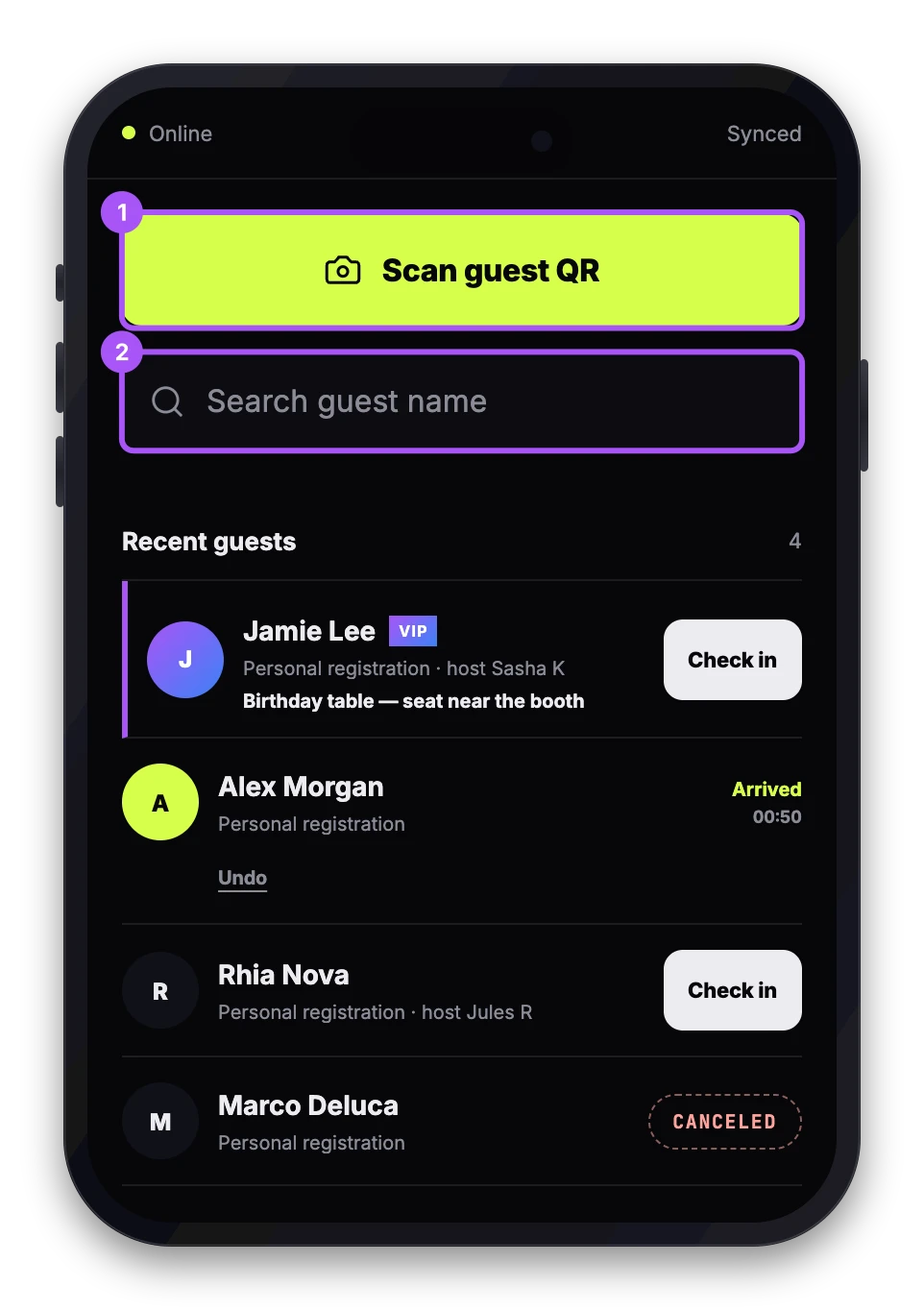
To do this, assign the user the Door staff role. This role limits their view to the Door Scanner interface for only the events you explicitly assign to them.
How to assign door-only access
- Log in to your organiser workspace as an Owner, Administrator or Event manager.
- Navigate to Team settings and invite a new member or select an existing one.
- Set their role to Door staff.
- Open the specific event they will work on.
- Assign the staff member to that event's door team.
Once assigned, the user can access the platform but will see a restricted experience tailored to their shift.
What door staff can see
When a user with the Door staff role logs in, they are directed straight to the Door Scanner at /door. Their access is limited to:
- A list of only the live or upcoming events they are assigned to.
- Guest search by name.
- QR code scanning for check-ins.
- Real-time arrival counts and capacity status.
- The ability to resolve guest-list exceptions for their assigned events.
What door staff cannot see
The Door staff role deliberately hides all other workspace functions. These users cannot:
- View or edit event details, dates or venues.
- Access promoter campaigns, links or performance data.
- See subscription invoices, billing information or campaign charges.
- Export guest lists or CRM data.
- Manage team members or workspace settings.
- View events they have not been explicitly assigned to.
This ensures your door team can work efficiently on mobile devices while your financial and strategic data remains private to Owners, Administrators, Finance users and Event managers.